Offboarding
This guide walks you through the process of disconnecting a client from Optimize365.
Table of Contents
Step 1: Disable Connections in Optimize365
Before removing the Enterprise Applications from Entra, you must first disable the connections in Optimize365:
- Navigate to https://app.optimize365.io and log in
- Select the client you want to offboard
- Toggle off CONNECT
- Toggle off REMEDIATION
Step 2: Remove Enterprise Applications from Entra
After disabling the connections in Optimize365, remove the Enterprise Applications from the client’s Microsoft Entra:
-
Go to Microsoft Entra (entra.microsoft.com)
-
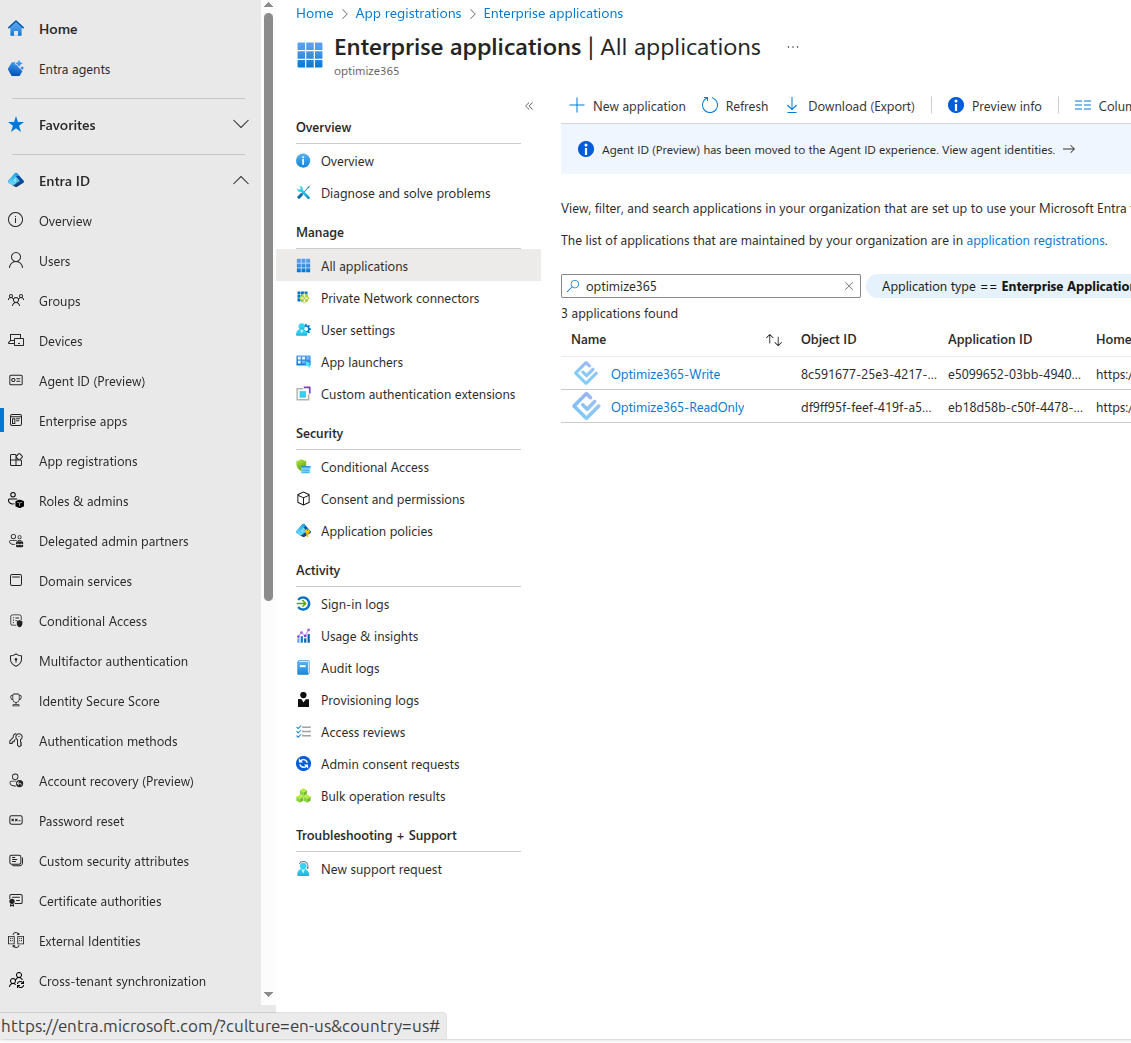
Navigate to Enterprise Applications
-
Search for “optimize365”
-
For each of the following applications, perform the removal steps:
- Optimize365-ReadOnly
- Optimize365-Write
To remove each application:
-
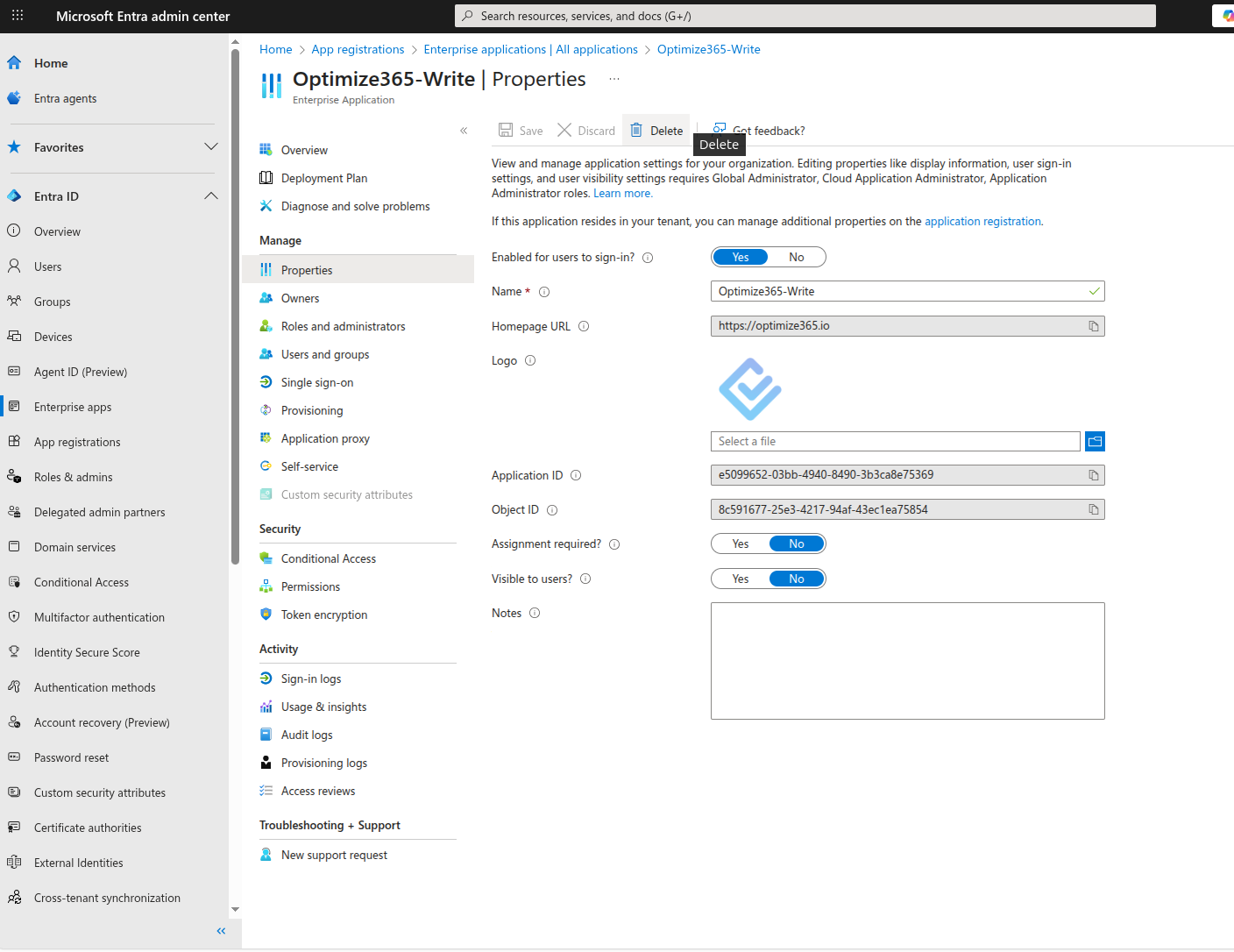
Click on the application name
-
Go to Properties
-
Click Delete
-
Confirm the deletion
Repeat this process for both applications.
If you have any questions during the offboarding process, feel free to contact our support team at [email protected].
Last updated on