Generate Client Login Consent Share Link
To enable our app registration to securely scan and analyze your client Microsoft 365 security and compliance data, we require admin consent from a Microsoft 365 Global Administrator.
⚠️ This method is ideal if you’re a Managed Service Provider (MSP) and your client does not want to share an admin account with you. Instead of logging in on your behalf, your client can approve permissions directly using a secure link.
Step-by-Step Instructions
What Permissions Are Requested?
- Read-only access to Microsoft 365 security and compliance data.
- No write access or admin control is requested.
- This is only to enable secure analysis and scanning of your client environment.
Why Use This Option?
- No need to share user credentials or create delegated admin accounts.
- Quick, secure, and fully auditable.
- Keeps your organization in control while enabling us to deliver insights and support.
1. Open the Admin Consent Setup
Toggle the Read-Only Login (M365) switch next to your client or prospect in the Optimize365 Portal to begin authentication with their Microsoft 365 credentials.

On the “Connect to Microsoft 365” screen, click More options.
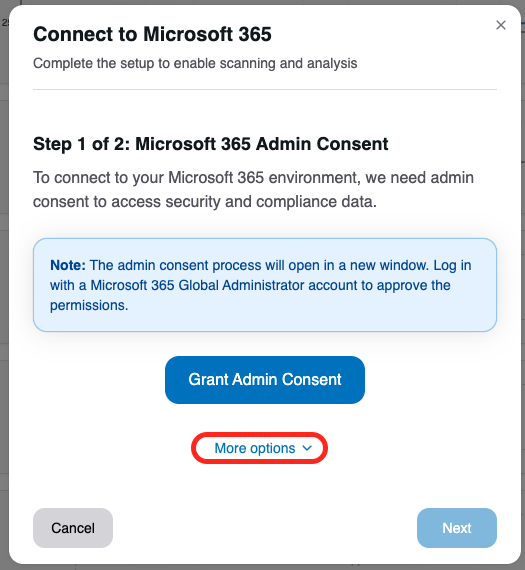
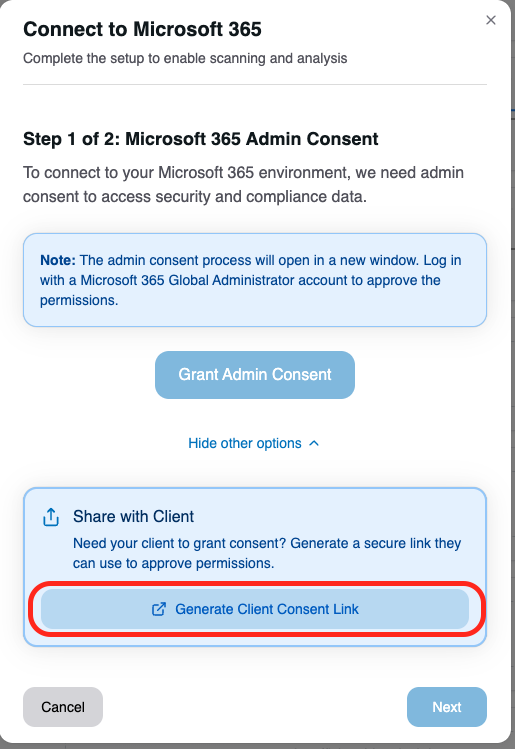
2. Generate the Client Consent Link
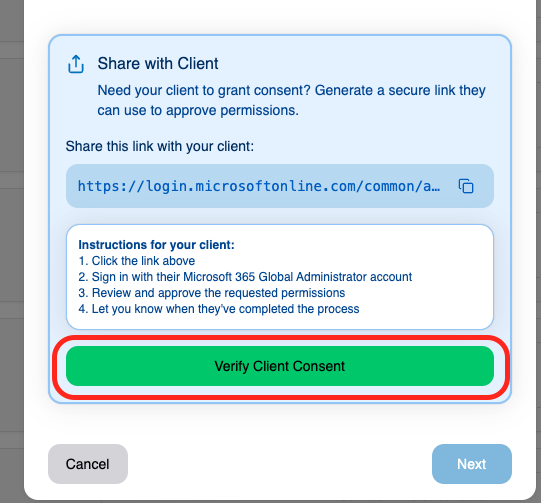
Click on Generate Client Consent Link. This allows you to share a secure link with your client, so they can login with their own user to assign the required permissions without giving you direct account access.
3. Share the Link With Your Client
A unique secure link will appear. Please send this link to your client, along with the following Client Instructions
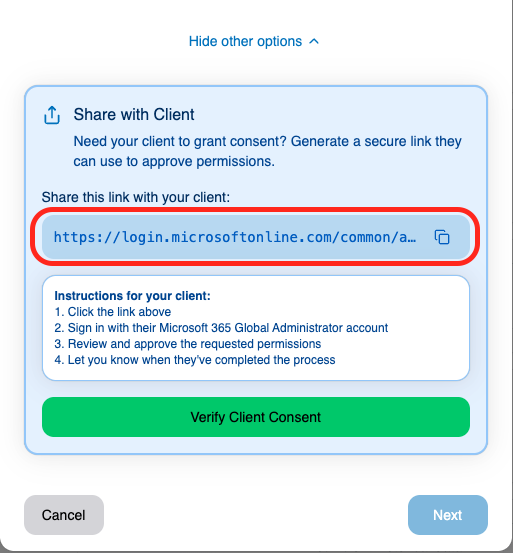
🔗 Client Instructions:
- Click the link you received.
- Sign in with a Microsoft 365 Global Administrator account to assign our App Registration “Read Only” Permissions.
- Review and approve the requested read-only permissions for our application.
- Notify you (the MSP) once the process is completed.
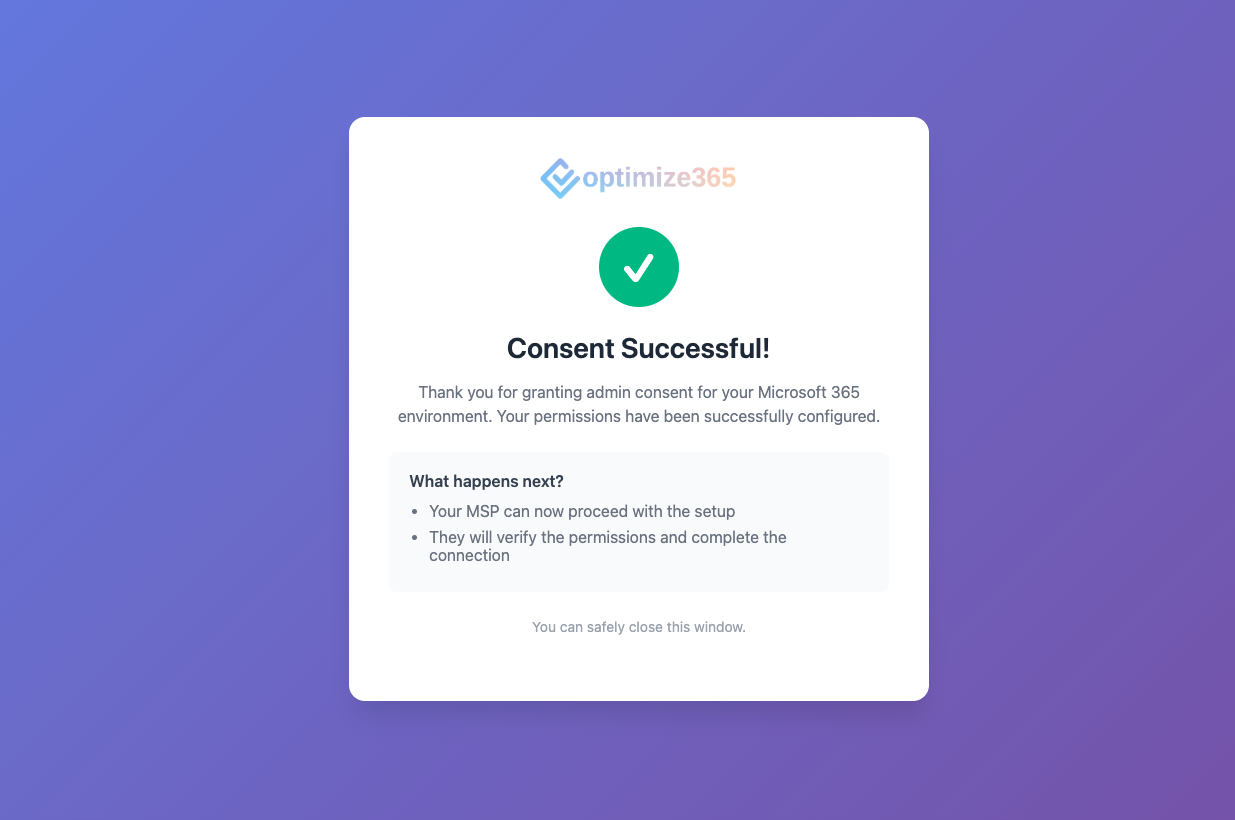
Once the Client has succeeded, he should see the following page:
4. Verify Client Consent
Once your client has confirmed they’ve approved the permissions, click Verify Client Consent to finalize the connection.
5. (Optional) Grant Global Reader permissions
If you need to scan beyond the Basic Security Baseline—for example, to access more scans or global insights—you may require Global Reader permissions.
Note: This level of access is not required for the Basic security for prospecting scan.
You can enable Global Reader access using one of the following options:
Option 1: Share Device Login Link
-
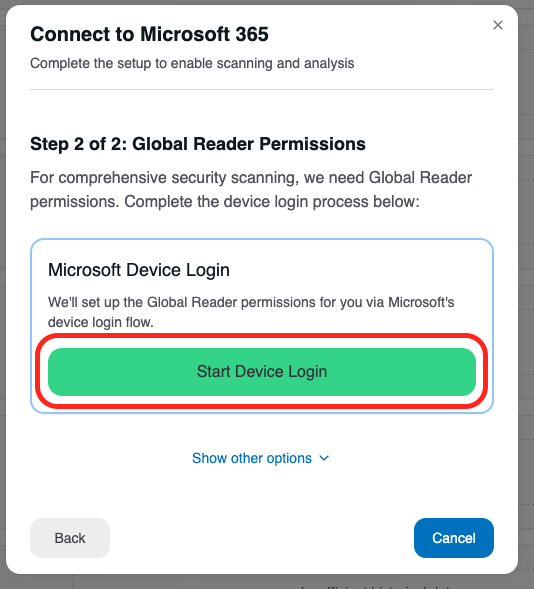
Click on Start Device Login to generate the shared login link.
-
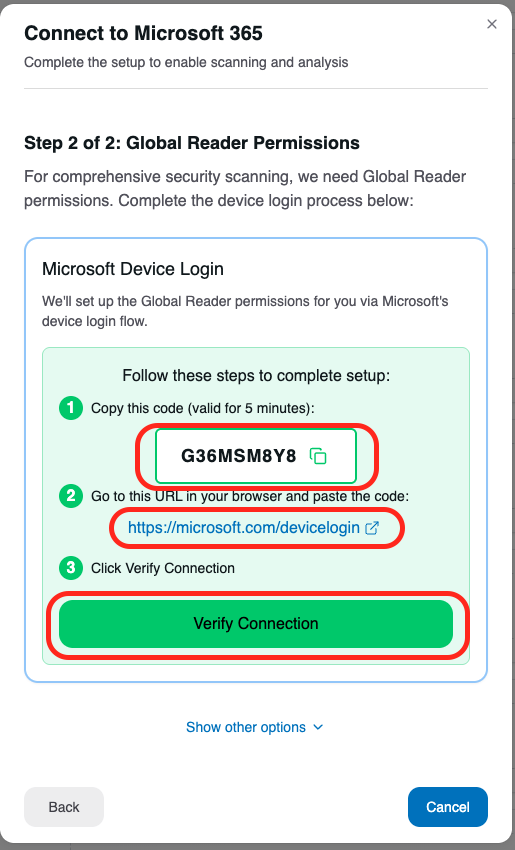
Share the Device Login link and authentication code with the client.
-
Ask the client to complete the login process.
-
Once the login is complete, click “Verify Connection” to proceed.
Note:
If you prefer to assign permissions manually, you can use the “More options” link on the page.
This method is equivalent to Option 2: Manual Global Reader Role Assignment described below.
Option 2: Manual Global Reader Role Assignment
Alternatively, you can manually assign Global Reader access by following the steps in the
Assign Global Reader Manually guide.
If you have any questions, feel free to contact us directly - [email protected] Thank you for your trust and partnership.