How to Create an API User in Autotask PSA (Step-by-Step Guide)
Creating an API user in Autotask is essential when integrating external systems (like Optimize365) with your PSA. This guide walks you through the process, using simple instructions and visuals.
Required Fields
- REST API URL: Your Autotask REST API endpoint. If you don’t know your REST API URL, check the Autotask API Zones page
- API Integration Code: The “Username (Key)” generated during API user creation (step 5)
- Secret: The “Password (Secret)” generated during API user creation (step 5)
- Username: Your regular Autotask login username (the one you use to log into Autotask web interface)
Step-by-Step Instructions
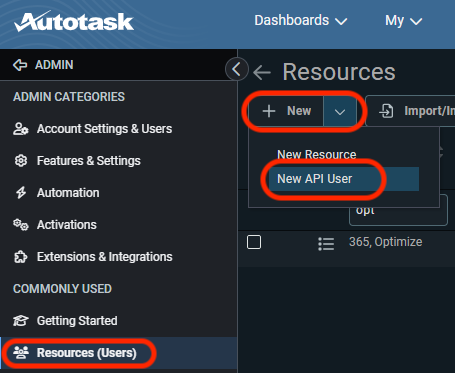
1. Navigate to Admin → Resources (Users)
- Log into your Autotask PSA account.
- Go to the left-hand menu:
ADMIN → Resources (Users)
2. Click the ”+ New” Button and Choose “New API User”
- Click the dropdown arrow next to the + New button.
- Select New API User.
3. Fill Out the General Information
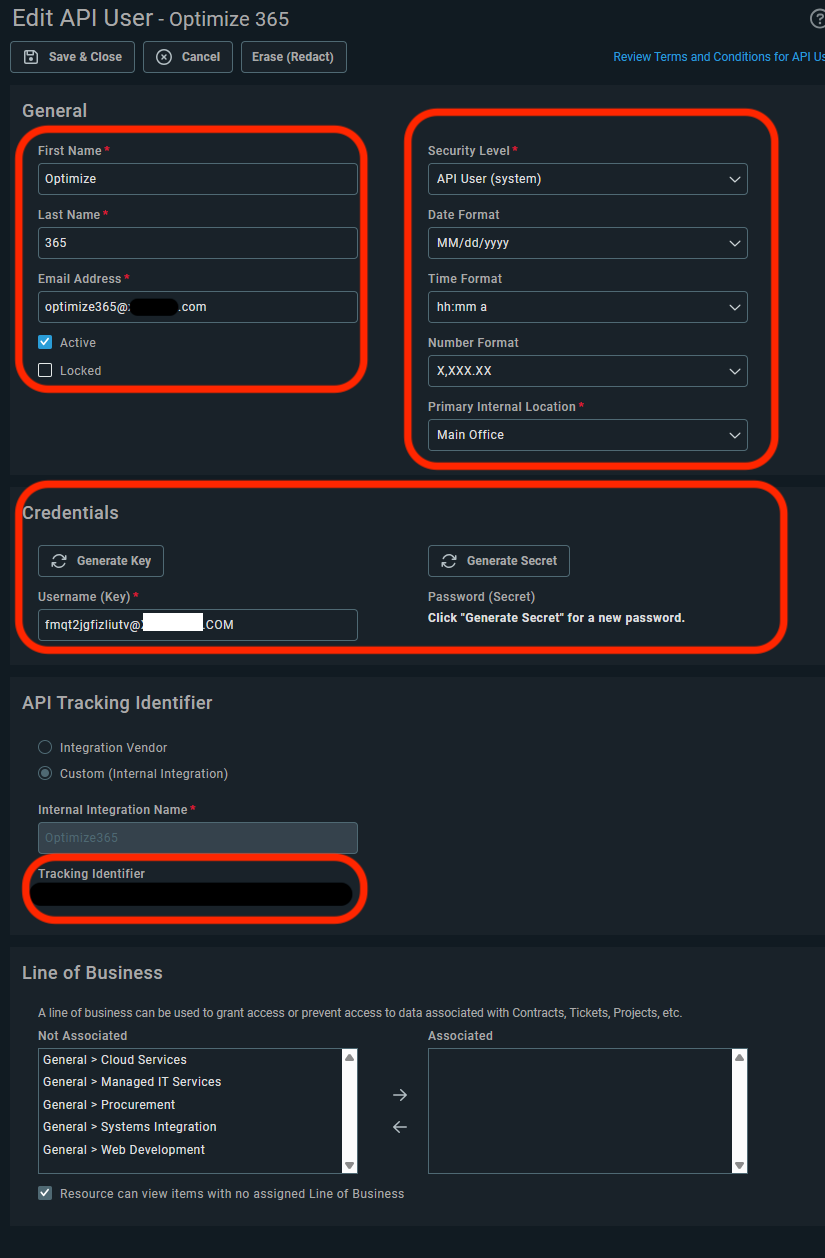
In the “Edit API User” window:
- First Name: e.g.,
Optimize - Last Name: e.g.,
365 - Email Address: Can be fake or internal (e.g.,
[email protected]) - Check the box Active
- Uncheck Locked (unless needed)
4. Set Security Level & Format Options
- Security Level: Choose
API User (system) - Set date/time/number formats as per your preference
- Primary Internal Location: Select the appropriate office
5. Generate API Credentials
Under Credentials:
- Click Generate Key → copy this
Username (Key)⚠️ Save this as your “API Integration Code” for Optimize365
- Click Generate Secret → copy this
Password (Secret)⚠️ Save this as your “Secret” for Optimize365
These credentials will be used to authenticate your API requests. Save them securely – you won’t be able to retrieve the secret again.
6. Set the API Tracking Identifier
- Choose:
Custom (Internal Integration) - Internal Integration Name: e.g.,
Optimize365 - Provide a unique Tracking Identifier (e.g.,
optimize-integration)
7. Optional: Assign Line of Business (if needed)
- You can assign specific lines of business to limit data access.
- Or check “Resource can view items with no assigned Line of Business” if unsure.
8. Save the API User
Click Save & Close at the top.
You’ve now created a fully functional API user for integration!
Connect with Optimize365
Now that you’ve created your API user, you can connect it to Optimize365:
-
In Optimize365 platform , go to Integrations and click on the Autotask toggle
-
Fill in the required fields with the information you collected:
- REST API URL: Use the default
https://webservices3.autotask.net/ATServicesRest/V1.0or your zone-specific URL from API Zones - API Integration Code: The “Username (Key)” you copied in step 5
- Secret: The “Password (Secret)” you copied in step 5
- Username: Your regular Autotask login username (what you used to log into Autotask to create the API user)
- REST API URL: Use the default
-
Click Connect to establish the integration
-
Validate that the integration shows as Active
Official Autotask Documentation
- Autotask API User Setup Guide (Datto Docs)
- Autotask REST API Overview
- Autotask API Zones - Find your correct REST API URL
- Security Levels and Permissions
Security Note
Never share your API key and secret publicly. Always store them in a secure password manager or secret vault (e.g., Azure Key Vault, AWS Secrets Manager).