Drift Detection
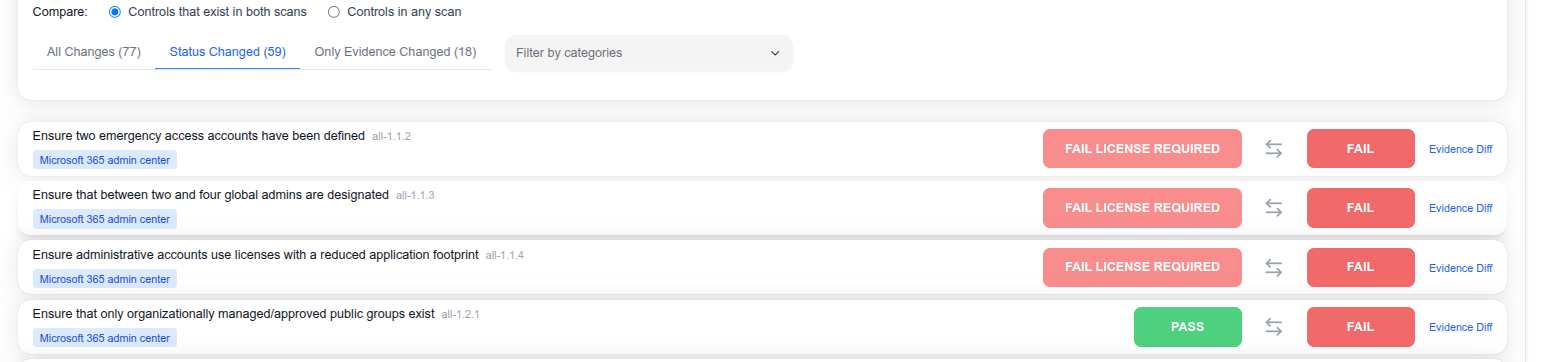
The Drifts tab allows you to compare two security scans side by side, identifying configuration changes and compliance drifts over time. This is essential for detecting unauthorized changes, tracking remediation progress, and maintaining a consistent security posture.
Comparison Modes
You can compare scans using two modes:
- Controls that exist in both scans — Shows only controls present in both snapshots for a direct comparison
- Controls in any scan — Shows all controls, including those that may have been added or removed between scans
Change Categories
Results are organized into tabs:
- All Changes — Every control with any difference between the two scans
- Status Changed — Controls where the pass/fail status changed (e.g., PASS to FAIL, or FAIL to PASS)
- Only Evidence Changed — Controls where the underlying evidence changed but the overall status remained the same
You can further narrow results using the Filter by categories dropdown to focus on specific Microsoft 365 components.
Drift Table
Each row shows a control and its status across both scans:
- Control description and control ID
- Category — The Microsoft 365 component (e.g., Microsoft 365 admin center)
- Left scan status — The status in the earlier scan
- Right scan status — The status in the later scan
- Evidence Diff — Click to see the detailed evidence difference for a specific control
Status values include PASS, FAIL, and FAIL LICENSE REQUIRED (indicating a control cannot be evaluated due to missing licenses).
Last updated on