App Registrations
The App Registrations tab provides visibility into all non-human identities in your client’s Microsoft 365 tenant — including app registrations and enterprise applications. This is critical for identifying shadow IT, credential risks, and over-permissioned applications.
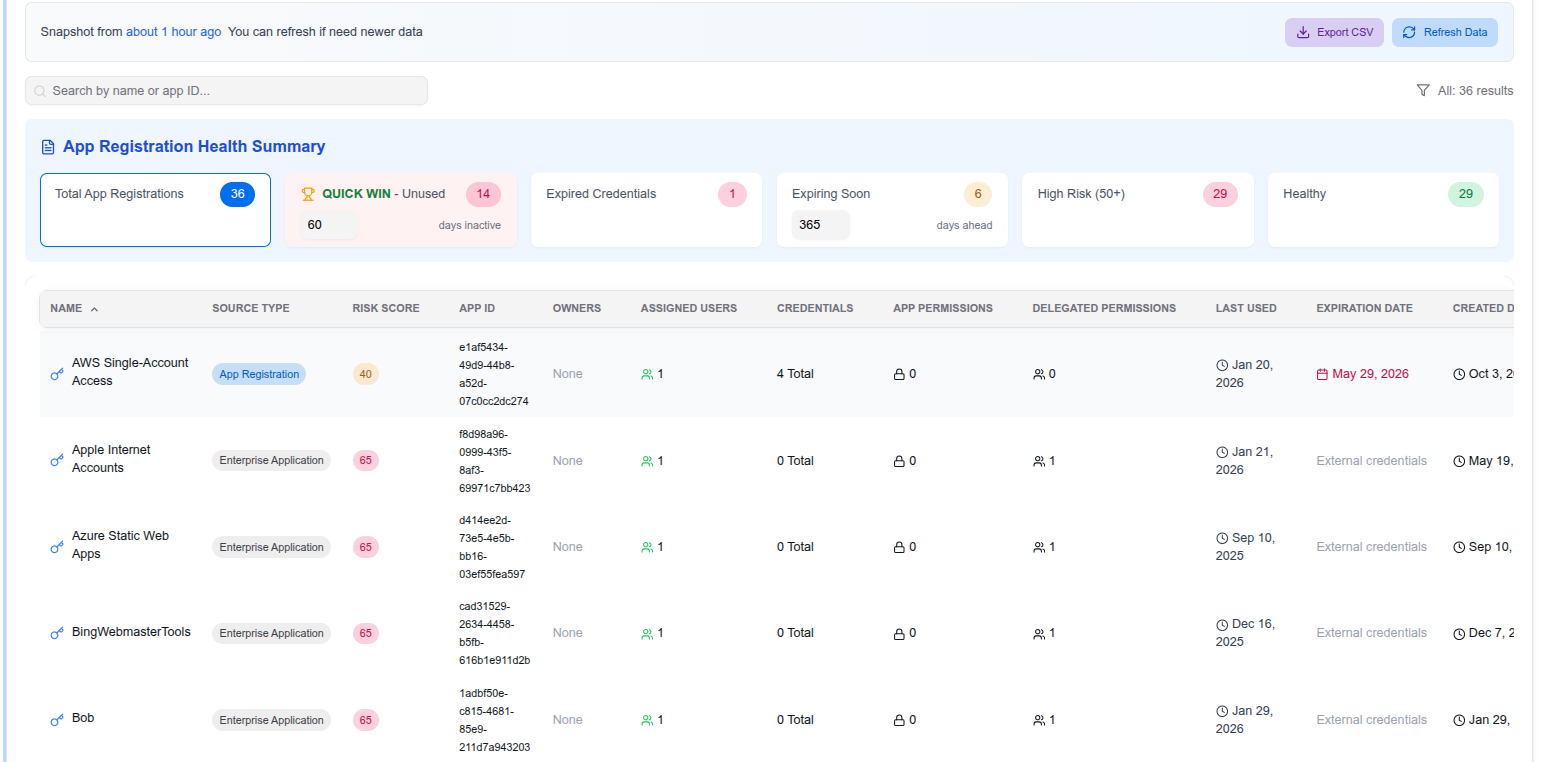
Health Summary
The top section displays an at-a-glance health summary with key metrics:
- Total App Registrations — Total number of registered apps and enterprise applications
- QUICK WIN - Unused — Applications that haven’t been used recently and may be safe to remove
- Expired Credentials — Apps with credentials that have already expired
- Expiring Soon — Apps with credentials expiring within a configurable window (default: 365 days)
- High Risk (50+) — Apps with a risk score of 50 or above
- Healthy — Apps with no significant risk factors
App Table
Each application is listed with detailed information:
- Name — Application display name
- Source Type — App Registration or Enterprise Application
- Risk Score — Numeric score based on combined risk factors
- App ID — The Microsoft application ID
- Owners — Number of assigned owners (flagged if none)
- Assigned Users — Number of users assigned to the app
- Credentials — Credential status and count
- App Permissions — Application-level (app-only) permissions granted
- Delegated Permissions — Permissions granted on behalf of users
- Last Used — When the app was last accessed
- Expiration Date — When the app’s credentials expire (highlighted in red if soon)
- Created Date — When the app was registered
You can search by name or app ID, filter results, export as CSV, and refresh data on demand.
Remediation Guide
App Registrations
App Registrations are custom applications registered in Microsoft Entra ID. They represent the application definition and can have credentials (secrets/certificates) and API permissions.
Expired or expiring credentials
- Navigate to the app in Microsoft Entra → App registrations
- Go to Certificates & secrets
- Remove expired credentials
- If the app is still in use, generate a new secret or upload a new certificate
- Update the consuming application with the new credential
No owners assigned
- Navigate to the app in Entra → App registrations → Owners
- Add at least one owner — this ensures someone is accountable for the app and receives expiry notifications
Unused applications
- Verify the app is no longer in use by checking the Last Used date in Optimize365
- Check with the app owner or team before removing
- As a safe first step, disable the app rather than deleting it
- If confirmed unused, delete the app registration to reduce your attack surface
Over-permissioned applications
- Review the API permissions tab in Entra
- Identify permissions that are not required for the app’s function
- Remove unnecessary application and delegated permissions
- Pay special attention to high-privilege permissions like
Mail.ReadWrite,Directory.ReadWrite.All, orRoleManagement.ReadWrite.Directory
Enterprise Applications
Enterprise Applications (Service Principals) represent an instance of an application in your tenant. These include third-party SaaS applications, Microsoft first-party apps, and any app consented to by users or admins.
Unknown or unreviewed third-party apps
- Navigate to Entra → Enterprise applications
- Review apps with delegated permissions — these were consented to by a user or admin
- Verify each app is a legitimate business tool
- Remove apps that are no longer used or were never authorized
Excessive delegated permissions
- Check what permissions users consented to on behalf of the organization
- Revoke consent for apps with permissions that exceed their intended use
- Consider configuring user consent settings in Entra to restrict future consent to admin-approved apps only
Disabled but not removed
- Disabled enterprise apps still retain their permissions and credentials
- If an app is no longer needed, fully remove it rather than leaving it disabled
- This prevents potential reactivation and reduces clutter
Managed Identities
Managed Identities are automatically managed by Azure and used by Azure resources to authenticate to services. They don’t have traditional credentials but can still be over-permissioned.
Over-permissioned managed identities
- Navigate to Entra → Enterprise applications → filter by Managed Identities
- Review the API permissions assigned
- Apply the principle of least privilege — only grant permissions the resource actually needs
- Use Azure RBAC role assignments to scope access to specific resources rather than broad API permissions
Orphaned managed identities
- If the Azure resource that created the managed identity has been deleted, the identity may still exist
- Check if the identity is still attached to an active resource
- Remove orphaned identities to reduce your attack surface
User-assigned vs system-assigned
- System-assigned identities are tied to a single resource and are deleted when the resource is deleted
- User-assigned identities can be shared across resources and must be managed independently
- Review user-assigned identities regularly as they persist even if the resources using them are removed