Activity Log
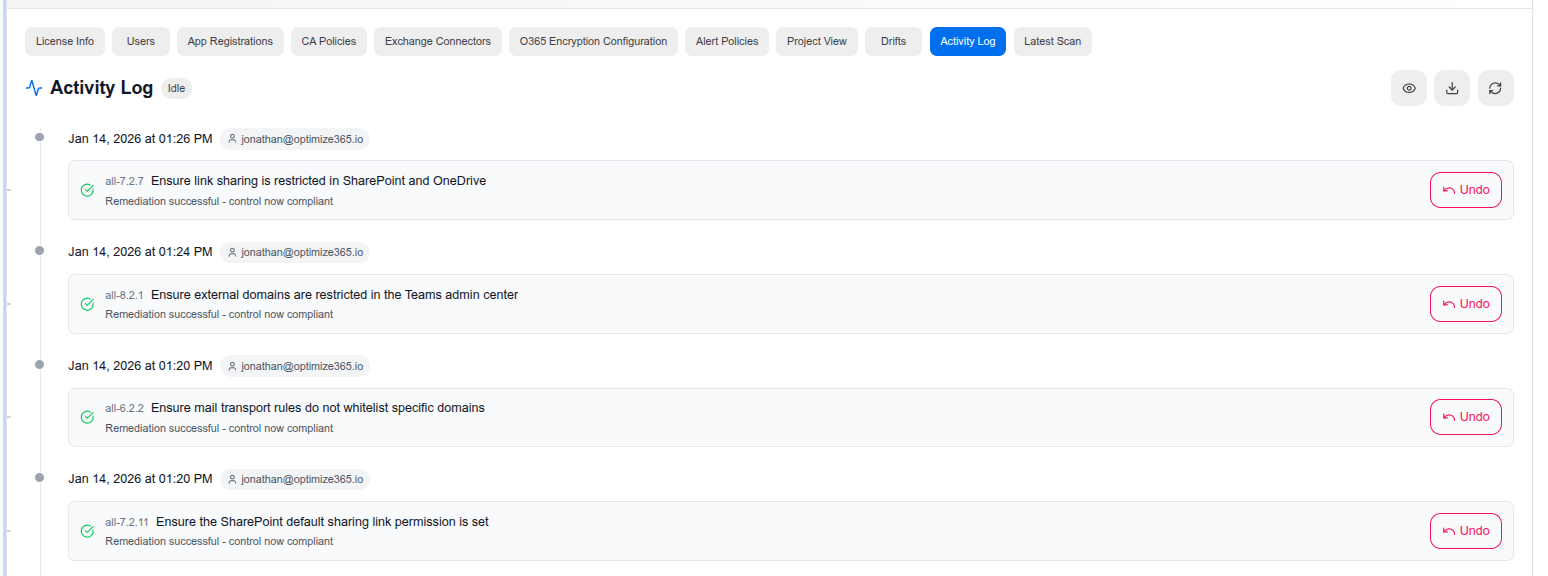
The Activity Log tab provides a complete audit trail of all remediation actions performed on a client’s Microsoft 365 tenant. Every change made through Optimize365 is tracked with timestamps, the user who performed it, and the specific control that was remediated.
Log Entries
Each entry in the activity log shows:
- Timestamp — The exact date and time the action was performed
- User — The email address of the Optimize365 user who executed the remediation
- Control ID — The specific security control reference (e.g., all-7.2.7, all-8.2.1)
- Control Description — A human-readable description of what was changed
- Status — The result of the action (e.g., “Remediation successful - control now compliant”)
Undo Remediation
Every remediation action can be reversed using the Undo button. This is a safety feature that allows MSPs to quickly roll back changes if needed.
Clicking Undo opens a confirmation dialog:
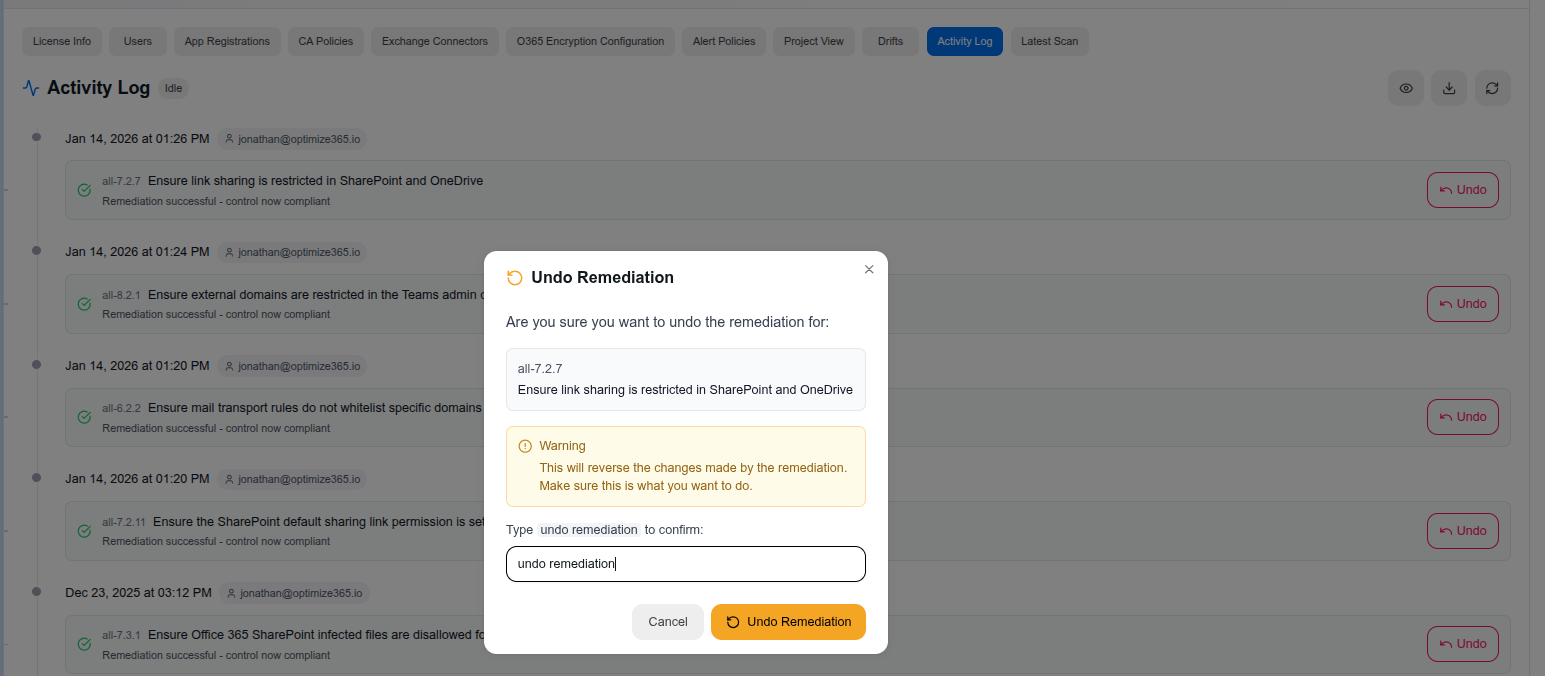
The undo process includes safeguards:
- A clear description of the control that will be reverted
- A warning message explaining that the changes made by the remediation will be reversed
- A type-to-confirm input — you must type “undo remediation” to proceed
This ensures that remediations are never accidentally undone.
Last updated on